
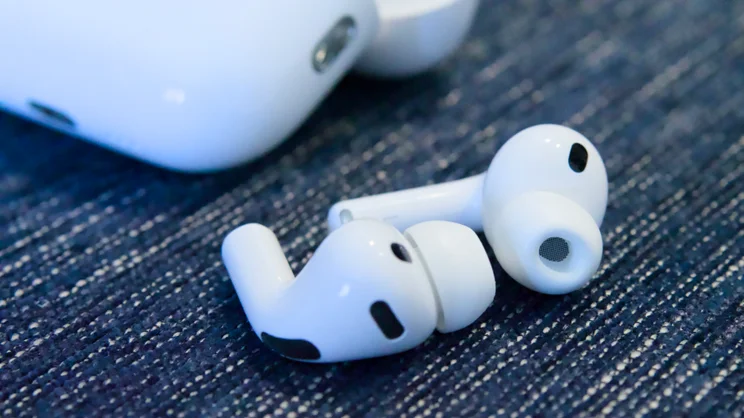
The world feels smaller when you can speak to anyone, anywhere, without language standing in the way. For years, science fiction promised us universal translators, devices that would dissolve barriers and create understanding between people from different cultures. That future has quietly arrived, tucked into the sleek form of Apple’s latest earbuds. The AirPods Pro 3 represent a significant leap forward in personal audio technology, and among their most remarkable capabilities is the live translation feature that transforms how we communicate across languages. Whether you are traveling abroad, conducting business with international partners, or simply connecting with neighbors who speak a different tongue, understanding how to use live translation on AirPods Pro 3 opens doors to genuine human connection that previous generations could only dream about.
This comprehensive guide walks you through everything you need to know about activating, using, and mastering the live translation functionality built into these remarkable devices. Unlike third-party applications that feel clunky and disconnected, the translation capabilities woven into the AirPods Pro 3 work seamlessly with your Apple ecosystem, creating an experience so natural that conversation flows without the awkward pauses that typically accompany language barriers.
Understanding the Technology Inside AirPods Pro 3
Before diving into the practical steps, it helps to understand what makes live translation possible within such compact earbuds. The AirPods Pro 3 incorporate Apple’s most advanced H-series chip yet, which processes audio with incredible speed and intelligence. This processing power, combined with sophisticated machine learning algorithms, enables the earbuds to capture spoken words, analyze linguistic patterns, translate content, and deliver results almost instantaneously.
The translation engine draws from years of development in natural language processing. Apple has trained its models on vast datasets covering dozens of languages, regional dialects, and conversational contexts. What makes the system particularly effective is its ability to understand not just literal word meanings but also idiomatic expressions, cultural references, and contextual nuances that simpler translation tools miss entirely.
The AirPods Pro 3 also benefit from improved microphone arrays that isolate the speaker’s voice from background noise. When you are standing in a bustling market in Marrakech or a crowded conference hall in Tokyo, the earbuds can still accurately capture speech for translation. The adaptive audio technology that made previous generations popular now works in service of clearer communication, filtering out ambient sounds and focusing on the human voice directly in front of you or coming through your connected device.
Initial Setup Requirements for Translation Features
Getting started with live translation on your AirPods Pro 3 requires some initial preparation, but Apple has designed the process to be straightforward even for users who do not consider themselves particularly tech-savvy. The first step involves ensuring your devices are ready to support this advanced functionality.
Your AirPods Pro 3 need to be paired with a compatible Apple device. The translation features work most comprehensively when connected to an iPhone running iOS 18 or later, though iPad users with iPadOS 18 can also access the full suite of capabilities. Mac users will find translation options available through macOS Sequoia, with some limitations compared to the mobile experience. Before proceeding, verify that your device software is updated to the latest available version, as Apple frequently refines translation accuracy through software updates.
Pairing the AirPods Pro 3 follows the familiar Apple process. Open the charging case near your unlocked iPhone, and a setup animation appears on screen. Follow the prompts to complete the connection. Once paired, navigate to the Settings application on your iPhone and select your AirPods Pro 3 from the top of the menu. Scroll through the available options until you find the Translation section. Here you will need to download language packs for the languages you anticipate using. Apple stores these packs locally on your device rather than requiring constant internet connectivity, which means translation works even when you are traveling without reliable cellular data.
Downloading Language Packs for Offline Translation
One of the most practical aspects of the AirPods Pro 3 translation system is its ability to function without an active internet connection. This offline capability proves invaluable when traveling internationally, where data roaming charges can accumulate quickly and Wi-Fi access may be inconsistent. The language packs reside on your paired iPhone and load into the earbuds’ active memory as needed.
To download language packs, open Settings on your iPhone and navigate to the Translation menu associated with your AirPods Pro 3. You will see a list of available languages organized by region. Each language entry shows the download size, which typically ranges from 200 megabytes to just over one gigabyte depending on the complexity of the language and the comprehensiveness of the included vocabulary. Tap the download icon next to any language you want to add. The device must have sufficient free storage space, so you may need to manage your photos or applications if storage runs low.
Apple currently supports over forty languages for live translation, with major world languages like Spanish, Mandarin Chinese, Arabic, French, German, Japanese, Korean, Portuguese, Russian, and Hindi all included. Less widely spoken languages continue to be added through software updates, reflecting Apple’s commitment to making the technology accessible to diverse populations. Once downloaded, language packs receive periodic updates that improve accuracy and add new vocabulary, particularly for rapidly evolving informal language and slang.
Activating Live Translation Mode on Your AirPods Pro 3
With language packs installed, you are ready to activate the translation features that make the AirPods Pro 3 such powerful communication tools. Apple has designed multiple activation methods to suit different situations and user preferences, recognizing that the way you initiate translation during a casual conversation differs from how you might use it during a formal meeting.
The most direct activation method uses the force sensor on the stem of either AirPod. By default, a triple-press on the stem launches the translation interface on your connected iPhone while simultaneously preparing the AirPods Pro 3 to process incoming speech. You will hear a subtle chime indicating that translation mode is active, and the iPhone screen displays a clean interface showing the two languages currently selected for translation. If you prefer voice activation, simply say “Hey Siri, start translation” while wearing your AirPods Pro 3, and the system activates without requiring you to touch the earbuds or your phone.
For frequent travelers or those who use translation regularly, Apple offers a shortcut option through the Control Center. Swipe down from the top-right corner of your iPhone screen to reveal Control Center, where you can add a Translation tile. Tapping this tile activates the feature on your connected AirPods Pro 3 instantly. Some users prefer configuring the Action Button on newer iPhone models to launch translation with a single press, providing the fastest possible access when spontaneous conversations arise.
Selecting Source and Target Languages Correctly
Accuracy in translation depends significantly on correctly identifying which languages are being spoken and which language you want to receive. The AirPods Pro 3 translation system allows you to set both a source language and a target language, and understanding how to configure these properly prevents the confusion that occurs when the system misidentifies what it is hearing.
When you activate translation mode, the interface on your iPhone displays two language selectors. The left selector indicates the source language, meaning the language you expect the other person to speak. The right selector indicates the target language, which is what you want to hear or read the translation in. For bidirectional conversations, you can tap the arrow icon between the language selectors to swap them instantly, allowing both participants to speak their native languages and receive translations.
The AirPods Pro 3 also offer an automatic language detection mode that can identify which of several languages is being spoken without manual switching. This proves particularly helpful when traveling through regions where multiple languages are common. To enable automatic detection, tap the settings gear within the translation interface and toggle on “Auto-Detect Language.” The system will analyze incoming speech and match it to installed language packs, though this mode requires slightly more processing time than manually specified languages.
Using Conversation Mode for Face-to-Face Communication
The most transformative application of live translation on AirPods Pro 3 is Conversation Mode, designed specifically for two people speaking different languages face to face. This mode creates a natural dialogue flow where each person hears the other’s words translated into their own language almost in real time, with only the briefest processing delay.
To use Conversation Mode, ensure both people are positioned within reasonable proximity in a relatively quiet environment. Activate translation on your AirPods Pro 3 and select the appropriate languages for both participants. Hand your iPhone to the person you are speaking with, or place it on a surface between you where both parties can see the screen. The display shows a split interface with the original speech appearing on one side and the translation on the other, providing visual confirmation alongside the audio translation delivered through your AirPods Pro 3.
When the other person speaks, your AirPods Pro 3 deliver the translated audio directly into your ears while the original speech plays through the iPhone speaker at a reduced volume. This dual output ensures you hear the translation clearly while maintaining awareness of the speaker’s tone and emotion. When you respond, your words are translated and played through the iPhone speaker for the other person to hear. The experience feels remarkably natural, and many users report that after a few exchanges, they forget technology is mediating the conversation at all.
Utilizing Media Translation for Audio and Video Content
Beyond direct conversation, the AirPods Pro 3 translation features extend to media consumption, opening up worlds of international content that language barriers previously rendered inaccessible. Whether you want to watch a foreign film without subtitles, listen to a podcast in another language, or understand a video call with international colleagues, the media translation capability proves enormously valuable.
When playing any audio or video content on your iPhone while wearing AirPods Pro 3, you can activate translation through the Control Center or by asking Siri to “translate this audio.” The system captures the audio stream before it reaches your ears, processes the translation, and delivers the result with minimal delay. For video content, you can choose between hearing only the translated audio or hearing both the original audio at reduced volume with the translation overlaid, similar to how interpreters work in broadcast settings.
The quality of media translation depends partly on the clarity of the source audio. Professionally produced content with clear speech translates more accurately than amateur recordings with background noise or overlapping voices. Apple’s algorithms excel particularly with news broadcasts, documentaries, and formal presentations where speakers enunciate clearly. Casual conversations in reality shows or films with heavy accents and slang present greater challenges, though accuracy continues improving with each software update.
Implementing Live Translation During Phone and Video Calls
Modern professional and personal relationships frequently span continents, making the translation capabilities of AirPods Pro 3 during calls particularly valuable. Whether you are negotiating a business deal with partners in Seoul or catching up with family members who never learned your adopted language, call translation makes these connections deeper and more meaningful.
To use translation during a phone call, initiate the call as you normally would while wearing your AirPods Pro 3. Once the call connects, activate translation through the call interface that appears on your iPhone screen. You will see an option to “Enable Translation” with language selectors for both sides of the conversation. Select the appropriate languages, and the system begins translating in real time. You hear the other person’s translated speech through your AirPods Pro 3, and your translated responses reach them through their device’s speaker.
Video calls work similarly, with translation available across FaceTime and supported third-party applications. The visual element of video calls adds another dimension, as you can observe facial expressions and body language that provide context beyond the translated words. For group calls with participants speaking multiple languages, the AirPods Pro 3 currently support translation from one primary language at a time, though Apple has indicated that multi-language support for group scenarios is under development for future updates.
Optimizing Translation Accuracy Through Proper Positioning and Environment
Like any technology that relies on capturing and processing human speech, the translation features of AirPods Pro 3 perform best under optimal conditions. Understanding how to position yourself, manage your environment, and adjust settings can dramatically improve the accuracy and usefulness of translations.
Positioning matters significantly for microphone performance. The AirPods Pro 3 use beam-forming microphones that focus on sound coming from the direction you are facing. When speaking with someone, position yourself directly facing them at a distance of roughly two to four feet. Avoid standing with the speaker behind you or significantly off to the side, as the microphones may not capture their voice with sufficient clarity for accurate translation.
Environmental noise presents the biggest challenge to translation accuracy. While the AirPods Pro 3 incorporate impressive noise reduction technology, extremely loud environments will still degrade performance. If you need to use translation in a noisy setting, position yourself with your back to the noise source so the microphones can focus on the speaker in front of you. For indoor conversations, choosing a room with soft furnishings helps reduce echo and reverberation that can confuse the speech recognition algorithms.
Speaking clearly and at a moderate pace significantly improves results. The translation system works best with natural, conversational speech rather than rushed or mumbled words. Encourage conversation partners to speak in complete sentences rather than fragments, as the contextual analysis relies on surrounding words to resolve ambiguities. If the system misunderstands a particular word or phrase, rephrasing often produces better results than simply repeating the same words more loudly.
Customizing Translation Settings for Personal Preferences
The AirPods Pro 3 offer extensive customization options that allow you to tailor the translation experience to your specific needs and preferences. Exploring these settings before you need translation in a critical situation ensures the system works exactly as you want when it matters most.
Within the Translation settings menu, you can adjust the speed at which translated audio is delivered. Some users prefer faster delivery that keeps pace with rapid conversation, while others benefit from slightly slower speech that allows more time to process unfamiliar translated phrases. The volume balance between original audio and translation can also be adjusted, letting you choose whether to hear primarily the translation or maintain awareness of the speaker’s original voice.
For users who rely on visual reinforcement, the translation display options provide choices between different text sizes and contrast levels. The conversation transcript can be set to auto-scroll or remain static, and you can choose whether to display both the original text and translation simultaneously or show only the translated text. These options accommodate different reading speeds and preferences, making the feature accessible to users with varying visual needs.
The AirPods Pro 3 also support personalized voice profiles that improve recognition accuracy for your specific speech patterns. In the Settings menu, you will find an option to complete a brief voice training session where you read several sample phrases aloud. The system uses this data to better understand your pronunciation, accent, and speech rhythm, resulting in more accurate translations when you speak.
Managing Privacy and Data During Translation Sessions
Conversations often involve sensitive information, whether personal matters discussed with family or confidential business negotiations. Apple has designed the translation features of AirPods Pro 3 with privacy considerations that protect your conversations while still delivering powerful functionality.
The local processing architecture means that most translation work happens entirely on your devices. When language packs are downloaded and translation is performed offline, no audio data leaves your iPhone and AirPods Pro 3. This on-device processing ensures that private conversations remain private, with no recordings stored on Apple servers or accessible to third parties. For users in professions requiring confidentiality, such as legal, medical, or financial services, this local processing model provides essential peace of mind.
When online translation is enabled for improved accuracy or for languages not yet available offline, Apple encrypts the audio data during transmission and deletes it immediately after processing. The company does not retain translation requests or use them to build user profiles for advertising purposes, distinguishing its approach from services that monetize user data. You can verify whether online translation is active by checking for a cloud icon in the translation interface, and you can restrict translation to offline-only mode in settings if you prefer absolute privacy.
Troubleshooting Common Translation Issues
Even with sophisticated technology, occasional issues arise that can interrupt smooth communication. Knowing how to quickly resolve common problems ensures that translation remains helpful rather than frustrating when difficulties occur.
If translations seem inaccurate or nonsensical, the most common cause is incorrect language selection. Verify that the source language matches what the other person is actually speaking, as dialects and regional variations can sometimes confuse automatic detection. Manually setting the exact language variant, such as selecting Mexican Spanish rather than European Spanish when speaking with someone from Mexico City, often improves results significantly.
Audio feedback loops can occur when translated audio from your iPhone speaker gets picked up by the AirPods Pro 3 microphones, creating confusion for the translation system. If you hear echoes or repeated translations, try reducing the iPhone speaker volume or positioning the phone slightly further from yourself. In some environments, using only one AirPod while keeping the other ear free reduces the likelihood of feedback while still providing translation.
Connectivity issues between the AirPods Pro 3 and your iPhone can interrupt translation. If translation stops working mid-conversation, check that Bluetooth remains active on your iPhone and that the AirPods Pro 3 have sufficient battery charge. Placing the earbuds back in their case for thirty seconds and then reinserting them often resolves temporary connection glitches. If problems persist, forgetting the AirPods Pro 3 in Bluetooth settings and re-pairing them typically restores full functionality.
Exploring Advanced Translation Scenarios
Beyond basic two-person conversations, the AirPods Pro 3 support several advanced usage scenarios that demonstrate the versatility of the translation system. These features reward exploration and practice, revealing capabilities that casual users might never discover.
The lecture transcription mode proves invaluable for students and professionals attending presentations in foreign languages. By activating translation while keeping your iPhone on the desk or table, the AirPods Pro 3 capture the speaker’s voice, translate in real time, and simultaneously generate a written transcript on your device. This transcript can be saved, searched, and reviewed later, turning every foreign-language lecture or presentation into accessible study material or meeting notes.
For travelers navigating foreign transit systems, the AirPods Pro 3 can translate public address announcements in real time. The transparency mode, which allows ambient sound to pass through, works in conjunction with translation to capture and convert overhead announcements into your preferred language. This feature helps travelers catch important information about gate changes, delays, or platform alterations that might otherwise be missed due to language barriers.
The system also supports translation of written text when used in conjunction with the iPhone camera. By activating the camera within the translation interface, you can capture images of signs, menus, or documents. The AirPods Pro 3 then read the translated text aloud, providing both visual and audio comprehension of written foreign language content. This combination proves especially helpful for travelers with visual impairments or anyone who prefers audio information delivery.
Maintaining and Updating Your Translation System
Keeping your AirPods Pro 3 and their translation capabilities functioning optimally requires some ongoing attention to software updates, language pack management, and hardware care. A few simple habits ensure that translation remains reliable whenever you need it.
Apple releases firmware updates for AirPods Pro 3 that improve translation performance alongside other features. These updates install automatically when the AirPods are charging near a connected iPhone, but you can check your current firmware version in the Settings app to confirm you have the latest version. Major iOS updates often include significant translation improvements, so keeping your iPhone updated proves equally important.
Language packs receive separate updates that refine vocabulary, improve recognition of regional accents, and add support for evolving language usage. The Settings app shows available updates for your downloaded language packs, and enabling automatic updates ensures you always have the most accurate translation models. If you travel to a region with a particular dialect, checking for language pack updates before your trip can significantly improve your translation experience.
Physical care of the AirPods Pro 3 affects microphone performance and, by extension, translation quality. Keep the microphone grilles clean and free of debris by gently wiping them with a soft, dry cloth. Avoid exposing the earbuds to excessive moisture or extreme temperatures that could affect the sensitive electronics inside. The charging case should be kept clean and dry, as the connection points between the case and earbuds must remain unobstructed for proper charging and firmware updates.
The Transformative Impact of Accessible Translation
Stepping back from the technical details, it is worth reflecting on what widely available live translation means for human connection and understanding. The AirPods Pro 3 represent not just a consumer electronics product but a tool for bridging divides that have separated people throughout history.
Travelers who previously limited themselves to countries where they spoke the language now explore with greater confidence, knowing their AirPods Pro 3 can facilitate essential communication. International students attending universities in foreign countries participate more fully in discussions and form deeper friendships when language barriers diminish. Medical professionals serving diverse communities provide better care when they can communicate directly with patients rather than relying on overburdened interpreter services or gesturing through examinations.
Families with members who speak different languages find new ways to connect. Grandparents who never learned their grandchildren’s primary language can now share stories and wisdom across generations. Couples from different linguistic backgrounds navigate their relationships with fewer misunderstandings. Immigrants maintain deeper connections with their heritage while integrating into new communities, carrying the gift of understanding in devices small enough to fit in a pocket.
Looking Forward to Future Translation Developments
The translation capabilities in AirPods Pro 3 represent a significant achievement, but Apple continues investing in research that will make future versions even more capable. Understanding the current state of the technology helps set realistic expectations while appreciating the trajectory of ongoing development.
Apple researchers are working on reducing the processing delay that currently exists between original speech and translated output. While the AirPods Pro 3 already achieve impressive speed, the goal is translation so instantaneous that it feels like understanding the original language directly. Advances in on-device processing power and more efficient machine learning models bring this vision closer with each hardware generation.
Expanding language support remains an ongoing priority. Languages with smaller speaker populations, regional dialects, and indigenous languages require dedicated research and data collection efforts. Apple has established partnerships with linguistic institutions worldwide to document and model languages that commercial translation services have historically overlooked. Users of AirPods Pro 3 can expect their devices to become more linguistically inclusive over time through software updates.
Emotional and tonal preservation represents another frontier. Current translation focuses primarily on literal meaning, but human communication conveys enormous information through tone, emphasis, and emotional inflection. Future systems may preserve these paralinguistic features, allowing translated speech to convey not just what someone said but how they said it. This development would address one of the most significant remaining limitations of mediated communication.
Conclusion: Embracing a World Without Language Barriers
Learning how to use live translation on AirPods Pro 3 opens a door to experiences and connections that language differences have traditionally made difficult or impossible. The technology is not perfect, and users should approach it with realistic expectations about occasional awkward translations or misunderstood phrases. But even with those limitations, the ability to communicate across languages with such ease represents something genuinely remarkable.
The steps covered in this guide, from initial setup and language pack installation through advanced features and troubleshooting, provide everything you need to begin using translation confidently. Practice in low-stakes situations builds familiarity with the system so that when important conversations arise, you can focus on connecting with the other person rather than managing the technology.
The AirPods Pro 3 exemplify technology serving human purposes at the deepest level. Communication builds understanding, understanding builds empathy, and empathy builds a world where differences become sources of enrichment rather than division. In that sense, these small white earbuds carry within them something far more significant than audio drivers and computer chips. They carry the possibility of genuine connection across the boundaries that have separated human beings for millennia.