How to Download Windows 11 ISO Safely: Complete Step-by-Step Guide
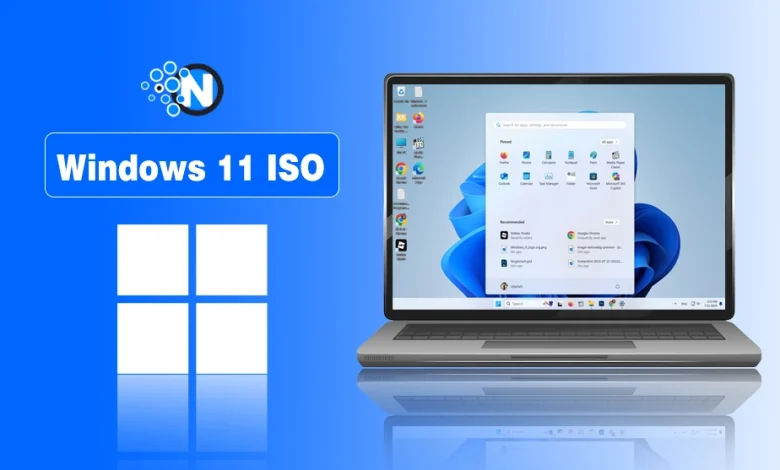
Downloading a Windows 11 ISO file is one of the most reliable ways to perform a clean installation, create bootable media, or set up virtual machines. Whether you’re upgrading from Windows 10, rebuilding a PC, or preparing for a fresh start, getting the official ISO ensures you have genuine Microsoft software with the latest features and security updates.
In this detailed guide, we’ll walk you through every aspect of the process safely and efficiently. You’ll learn official methods, hardware checks, verification techniques, and practical advice to make the experience smooth—even for complete beginners.
In this article
- Why Download the Windows 11 ISO?
- Windows 11 System Requirements: Check Compatibility First
- Official Ways to Download Windows 11 ISO
- Step-by-Step: How to Download Windows 11 ISO Safely
- How to Verify Your Windows 11 ISO Download
- Creating Bootable USB Media from the ISO
- Benefits vs. Drawbacks of Using a Windows 11 ISO
- Post-Download: Installing Windows 11
- Expert Tips for a Smooth Experience
- Common Issues and Troubleshooting
- Why Safety Matters When You Download Windows 11
- Additional Subtopics for Better Understanding
- Conclusion
Why Download the Windows 11 ISO?
A Windows 11 ISO is a complete disk image containing all installation files. It offers flexibility that in-place upgrades often lack.
 Also readEffective Ways to Repair Corrupted Windows Files and Restore Your PC Smoothly
Key benefits include:
- Clean installation — Start with a fresh system free from accumulated clutter, old drivers, or potential issues from previous OS versions.
- Bootable media creation — Make USB drives or DVDs for installing on multiple devices or offline setups.
- Virtual machine support — Perfect for testing in VMware, VirtualBox, or Hyper-V.
- Reinstallation option — Useful for troubleshooting or recovering a problematic system.
- Version control — Select specific editions and languages.
Many users prefer this method for optimal performance. A clean install often results in faster boot times, better stability, and improved responsiveness compared to upgrading over an existing installation.
Real-world scenario: Sarah, a graphic designer, noticed her Windows 10 laptop slowing down after years of use. By downloading the Windows 11 ISO and performing a clean install, she regained snappy performance and gained access to new productivity features without carrying over old bloat.
Windows 11 System Requirements: Check Compatibility First
Before downloading, verify your PC meets the minimum requirements. Windows 11 has stricter hardware standards than Windows 10, focusing on security and modern performance.
Minimum System Requirements
| Component | Requirement |
|---|---|
| Processor | 1 GHz or faster, 2+ cores on compatible 64-bit CPU or SoC |
| RAM | 4 GB |
| Storage | 64 GB or larger |
| System Firmware | UEFI with Secure Boot capable |
| TPM | Version 2.0 |
| Graphics Card | DirectX 12 compatible with WDDM 2.0 driver |
| Display | 720p (HD), >9″ diagonal, 8-bit color |
| Internet | Required for initial setup (Home/Pro editions) |
Copilot+ PCs have higher specs, including an NPU with 40+ TOPS, 16 GB RAM, and 256 GB storage for advanced AI features.
Expert Tip: Download and run Microsoft’s free PC Health Check app to assess compatibility automatically. Also, check your manufacturer’s website for BIOS updates, as some older systems can be enabled for TPM 2.0 and Secure Boot via firmware settings.
Common Compatibility Issues and Solutions:
- TPM 2.0 not enabled — Enter BIOS (usually Del, F2, or F10) and enable it under Security settings.
- Unsupported CPU — Some users explore workarounds for older hardware, but Microsoft does not recommend this for long-term support and updates.
- Insufficient storage — Free up space or use an external drive for installation media.
Official Ways to Download Windows 11 ISO
Microsoft provides straightforward, secure methods. Always use their official site to ensure safety and authenticity.
Method 1: Direct ISO Download (Recommended for Most Users)
- Visit the official Microsoft Download Windows 11 page.
- Scroll to “Download Windows 11 Disk Image (ISO) for x64 devices”.
- Select Windows 11 from the dropdown and click Download Now.
- Choose your language (e.g., English United States) and confirm.
- Select the 64-bit download link. The file is typically 5-6 GB.
This multi-edition ISO uses your product key to unlock the appropriate version (Home, Pro, etc.).
Method 2: Using Media Creation Tool
This tool creates installation media or an ISO directly:
- On the same page, select Download Now under Create Windows 11 Installation Media.
- Run the tool as administrator.
- Accept terms, choose Create installation media for another PC.
- Select language, edition, and architecture (64-bit).
- Choose ISO file as the media type and save it.
For Arm-based devices (like certain Snapdragon laptops), use the dedicated Arm64 ISO page.
Pro Tip: Ensure a stable internet connection and at least 8-10 GB free space. Downloads can take 30-90 minutes depending on speed.
Step-by-Step: How to Download Windows 11 ISO Safely
Here’s a detailed walkthrough for the direct method:
- Open your browser — Use Microsoft Edge or Chrome for best compatibility.
- Navigate securely — Go directly to the official Microsoft site (search “download Windows 11” and select the microsoft.com result).
- Select options — Follow the prompts carefully.
- Monitor the download — The browser will show progress. Pause and resume if needed.
- Choose save location — Pick a folder with ample space, like Downloads or a dedicated “Windows ISOs” folder.
Safety Practices:
- Only download from microsoft.com.
- Keep antivirus enabled during the process.
- Note the file size (around 5-7 GB for recent versions) to confirm completeness.
How to Verify Your Windows 11 ISO Download
Verification ensures the file is genuine and uncorrupted. Microsoft provides SHA-256 hashes on the download page under “Verify your download.”
Using PowerShell (Windows 10/11):
- Open PowerShell as Administrator.
- Navigate to the download folder: cd C:\Path\To\Download
- Run: Get-FileHash Win11_25H2_English_x64.iso -Algorithm SHA256
- Compare the output hash to Microsoft’s provided value.
If they match, your download Windows 11 ISO is verified and safe to use.
Alternative Tools: Third-party hash checkers like HashCalc or online verifiers (upload only if trusted) can also help, but PowerShell is built-in and reliable.
Creating Bootable USB Media from the ISO
Once downloaded, turn the ISO into usable media:
Using Rufus (Popular Free Tool)
- Download Rufus from its official site (rufus.ie).
- Insert an 8GB+ USB drive (all data will be erased).
- Select the ISO, choose the USB, and click Start.
- Rufus offers options to bypass certain requirements if needed (for advanced users on unsupported hardware).
Using Windows Built-in Tools
Right-click the ISO > Mount, then use the setup or burn to DVD if preferred.
Real-World Example: Tech enthusiast Mike created multiple bootable USBs for family PCs. He labeled them clearly and stored them in a safe place for quick reinstalls.
Benefits vs. Drawbacks of Using a Windows 11 ISO
Benefits:
- Fresh, optimized installation.
- Full control over the setup process.
- Easy for multiple devices or VMs.
- Better long-term performance and security.
Drawbacks:
- Requires backing up data beforehand.
- Time-consuming for large file downloads and installations.
- Potential driver issues post-install (usually resolved via Windows Update).
Clean installs generally outperform upgrades by removing legacy files and optimizing for new hardware.
Post-Download: Installing Windows 11
- Back up important files.
- Boot from the USB/DVD (change BIOS boot order if needed).
- Follow on-screen prompts: Select language, enter product key (or skip for later), choose custom install for clean setup.
- Partition drives carefully.
- Complete initial setup, including Microsoft account (or local account options in some configurations).
After Installation:
- Update drivers and Windows.
- Restore files from backup.
- Reinstall essential apps.
Expert Tips for a Smooth Experience
- Backup everything — Use external drives or cloud services.
- Product keys — Windows 11 can often use your Windows 10 key.
- Storage management — The ISO needs space; final install requires more.
- Network drivers — Download them beforehand if your hardware needs specific ones.
- Multiple languages — The multi-edition ISO supports switching.
- Virtual testing — Install in a VM first to test compatibility.
For businesses or advanced users: Consider Windows 11 Enterprise evaluation ISOs from Microsoft for extended testing.
Common Issues and Troubleshooting
- Download fails — Clear browser cache, try another browser, or use the Media Creation Tool.
- ISO too large for DVD — Use USB or dual-layer discs.
- Boot issues — Disable Secure Boot temporarily in BIOS or check USB compatibility.
- Activation problems — Link your digital license in Settings > Update & Security > Activation.
Why Safety Matters When You Download Windows 11
Sticking to official sources protects against tampered files that could introduce risks. Verification steps add an extra layer of confidence. Always prioritize microsoft.com links for your download Windows 11 needs.
Additional Subtopics for Better Understanding
Understanding Windows 11 Editions in the ISO
The multi-edition ISO includes Home, Pro, Education, and more. Your product key determines the activated version. This flexibility is great for users unsure of their exact needs.
Windows 11 Features You’ll Gain
From improved Snap layouts and virtual desktops to enhanced security (like Windows Hello) and AI-powered tools in newer updates, the latest version brings modern computing enhancements.
Managing Storage and Performance After Install
Post-install, use Disk Cleanup, Storage Sense, and regular maintenance for optimal speed. Monitor with Task Manager.
Upgrading vs. Clean Install: Which is Right for You?
Upgrades preserve files and apps but may carry issues. Clean installs via ISO offer purity but require more preparation. Choose based on your current system’s health.
Future-Proofing Your PC with Windows 11
Regular updates ensure ongoing support. Consider hardware upgrades (RAM, SSD) alongside the OS for the best experience.
Conclusion
Downloading the Windows 11 ISO safely is straightforward when following official Microsoft steps. From checking system requirements and selecting the right download method to verifying the file and creating bootable media, each stage ensures a secure and successful process.
Key Takeaways:
- Always use the official Microsoft website for downloads.
- Verify the ISO with SHA-256 hashes.
- Prepare backups and check hardware compatibility.
- Opt for a clean install for the best performance.
- Stay updated after installation for security and features.
By taking these steps, you’ll enjoy a reliable, fast, and secure Windows 11 experience. Whether for personal use, work, or experimentation, this method empowers you with control and peace of mind.
Ready to get started? Head to the official Microsoft download page today and experience the next generation of Windows. For more tips on Windows optimization, explore trusted resources like the Microsoft Support site or community discussions on forums.

Get in Touch We welcome your feedback, inquiries, suggestions, and news tips. Whether you are a reader, advertiser, or business partner, our team is here to assist you. Email: businesstomark@gmail.com